Accruent Siterra 26.2 Release Notes
We're delivering this automatic upgrade to UAT environments on March 19, 2026 and to production environments on April 11, 2026.
Release notes are subject to change until the production release.
Preview new interface
SP-58643
We’re rolling out a new modern interface for Siterra, starting with the default Home page. Early adopters can sign up to evaluate it.
Turn on the preview
The preview is unavailable by default. To request access, contact Accruent Support with this subject line:
Request technical preview of new Siterra UI in UAT
Switch between new and classic
When Support enables the preview:
-
Select New Siterra (upper-right) to switch to the new interface.
-
Select it again to return to Classic Siterra.
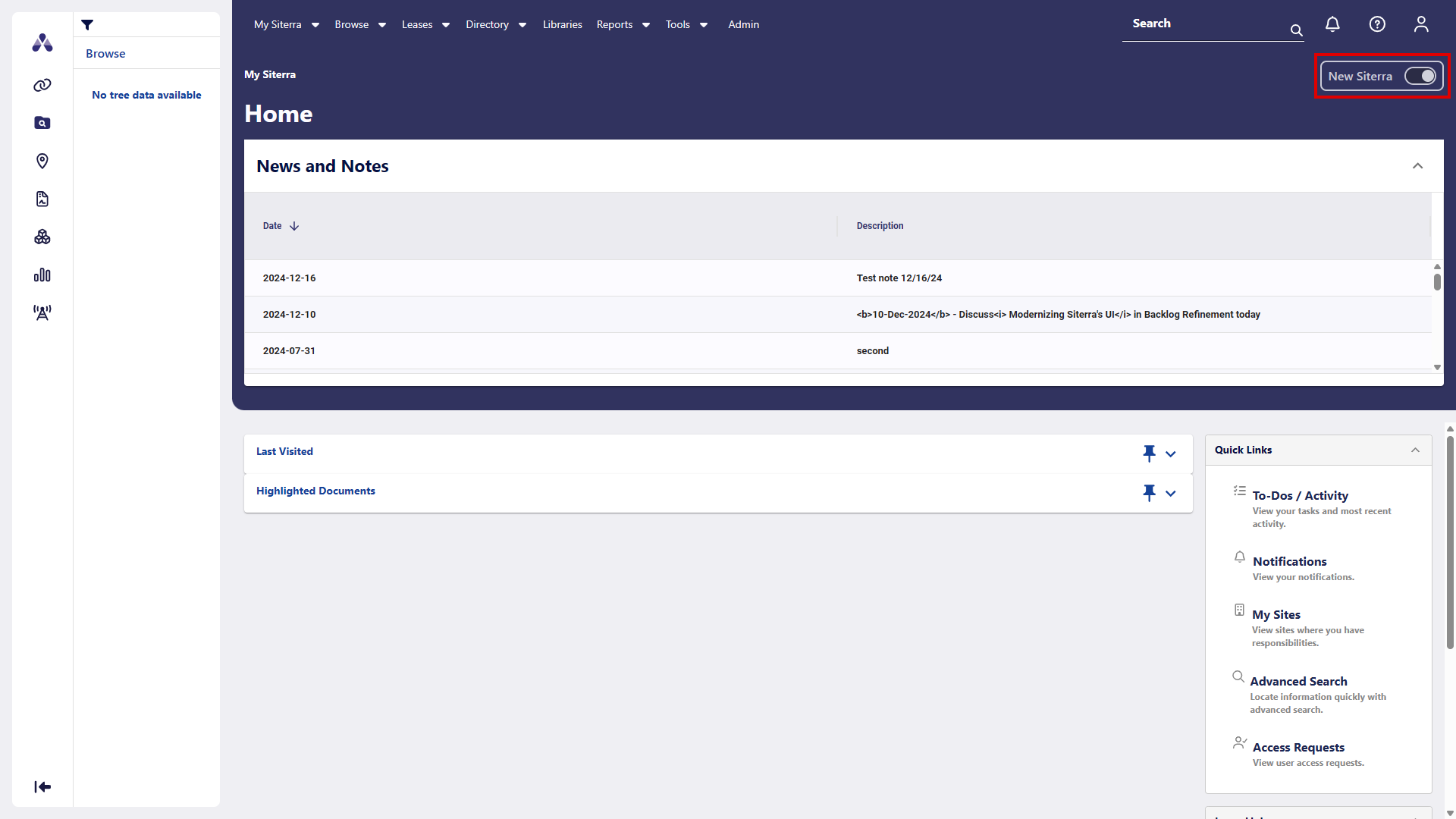
Most menus and options work the same in the new interface. If you open something that isn’t available yet, Siterra shows the Classic page or dialog and continues operating normally.
The following sections describe new pages available for preview in this release.
Assets
SP-58501
In New Siterra, navigate to an asset using the left navigation.
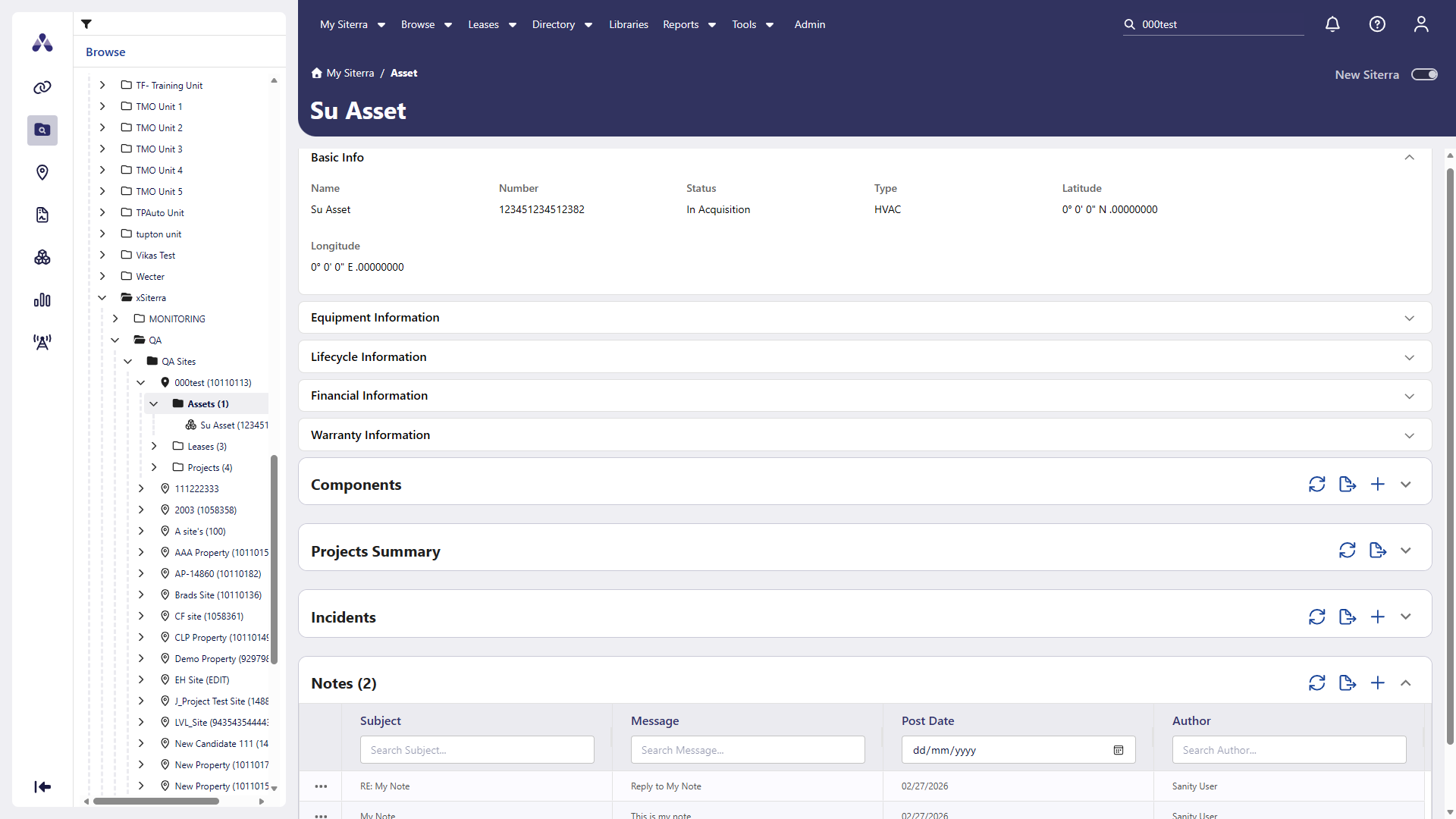
Notes
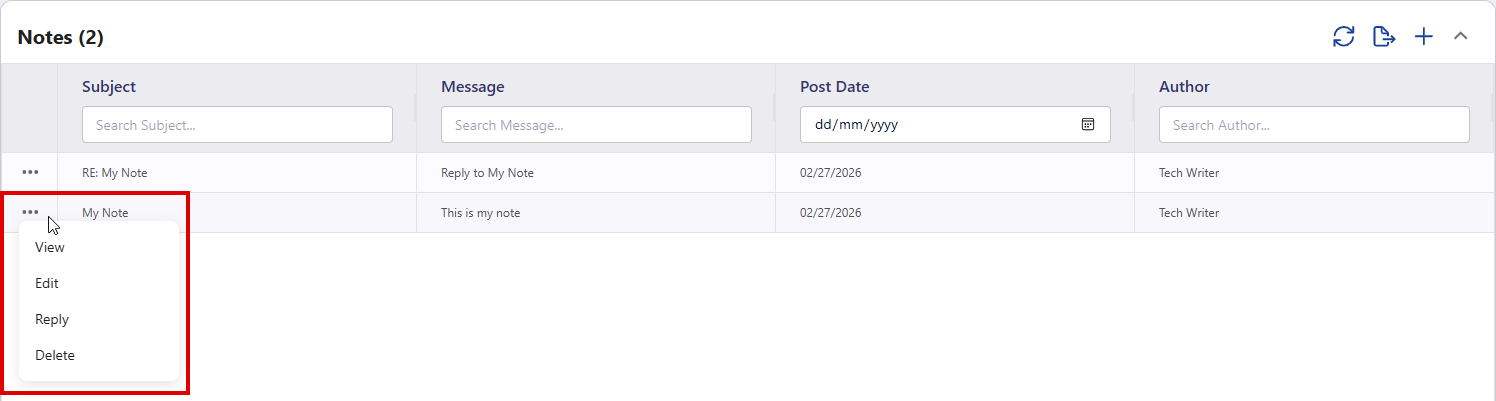
In New Siterra, View, Add, Edit, Reply and Delete notes from the ellipsis button ( ) in the Notes section.
Add Assets
SP-59123, SP-59359
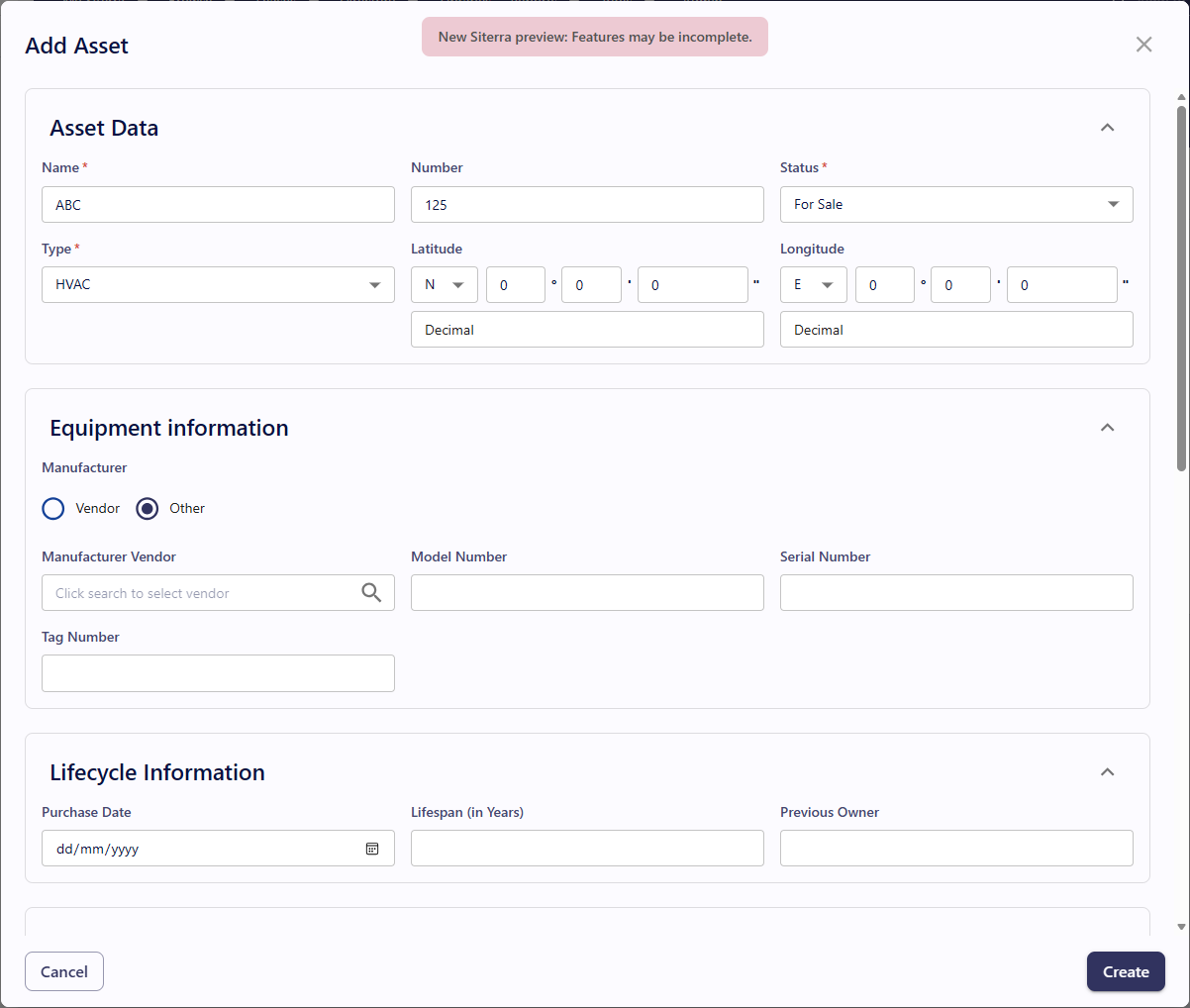
Preview the new Add Asset form from the Asset page. Some features on this page are under construction and will be available in future releases, including the ability to add assets to a site.
-
In New Siterra, select Browse > Asset.
-
Select Create Asset.
-
Complete each section of the Add Asset window:
- Select Create.

Extended Attributes: Displays fields according to EA component types your administrator has configured such as Lookup and Calculated. When you change Asset Type, this refreshes automatically depending on the configuration your administrator has chosen.
Open an object’s home page with Jump to
SP-58290
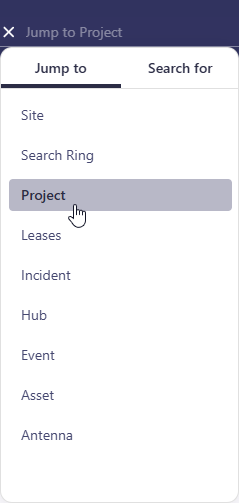
Use Jump to to go directly to the home page of an object that matches your search term.
-
In the search bar, select Search
 .
. -
Under Jump to, select the object type.
The search updates to Jump to [object].
-
Enter the exact object name or object number, and then press Enter.
Search for an object
-
In the search bar, select Search
. -
Under Search for, select an object type.
The search updates to Search for [object].
-
Enter the your search criteria, and then press Enter.
To Dos / Activity
SP-59110
In New Siterra, selecting a Site Name in the To‑Do list now opens that site in Classic Siterra.
Crue
SP-59472
Use Crue to get quick answers to your questions, summarized user guides, and links to additional content. Select Ask Crue in the upper-right corner.
Lease Performance
SP-59097
Bulk operations in leases run faster, especially for long payment schedules.
|
Payment Length |
Before |
After |
|---|---|---|
|
25 years * 12 months = 300 lines with 25 Escalations |
35 seconds |
9 seconds |
|
50 years * 12 months = 600 lines with 50 Escalations |
180 seconds |
27 seconds |
|
75 years * 12 months = 900 lines with 75 Escalations |
300 seconds |
75 seconds |
Bulk Object Updater Project Task & EA data permissions
Control access to project task and Extended Attribute (EA) data in Bulk Object Updater (BOU) for non-admin users using role-based permissions.
The new Project Task & EA data [Restricted permissions] option appears in the Bulk Object Updater – BOU section of the Global Role Permissions.
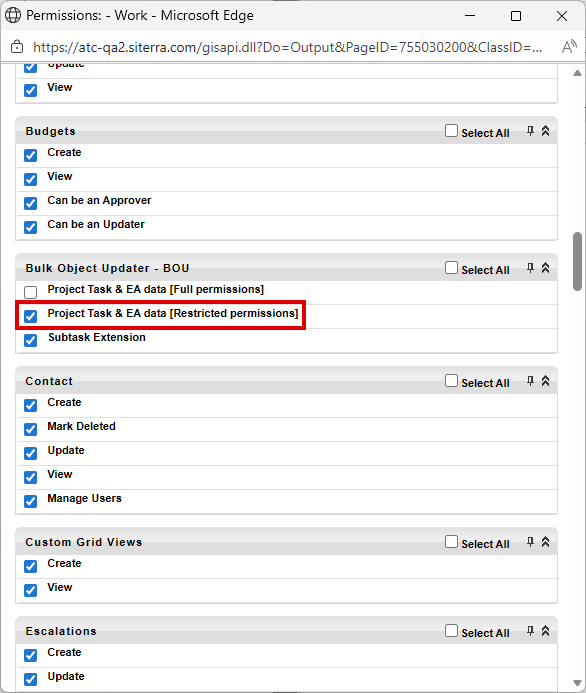
This changes the way each user accesses and updates project task and EA data in BOU:
-
Project Task & EA data [Full permissions]: Access project task & EA data in BOU without selecting a form first and perform any operations allowed by your overall access to BOU.
-
Project Task & EA data [Restricted permissions]: Requires users to select a form before selecting extended attributes in the Project Task & EA data view of BOU. This permission also limits available actions to the same actions allowed when updating project tasks and EAs individually. This option enables role-based control over task data while still allowing users to update task fields.
-
Subtask Extension: Controls access to a separate bulk subtask management menu. This menu appears only if the SP-50000 feature toggle is enabled in your environment.
The existing Project Task & EA data permission is relabeled to Project Task & EA data [Full permissions].
If you select both Project Task & EA data [Full permissions] and Project Task & EA data [Restricted permissions], users have full permissions.
-
Go to Admin > Security > Roles.
-
On the role, select menu > Set Global Permissions.
-
Scroll to the Bulk Object Updater – BOU section and select the options you want.
-
Select Save.
-
Assign the role to a non-admin user.
Remove N/A from tasks and subtasks in Bulk Object Updater
SP-59203, SP-59244
Remove N/A from tasks and subtasks in Bulk Object Updater (BOU) the same way as removing N/A from tasks and subtasks individually. Control whether completion dates are also removed when you remove N/A from a task that already has completion dates such as External Date or Manual Date.
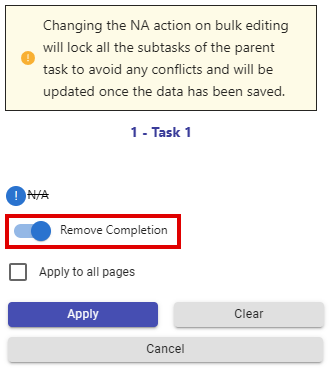
Use the new Remove Completion option to also clear the completion information when you remove N/A.
-
In BOU, if the NA Action column isn't displayed, select Select Task Data, and then NA Action.
-
Select any other columns that you need to display.
-
Select Edit.
-
Double-click NA in the NA Action column header.
-
Select Remove N/A.
-
Set the Remove Completion option:
-
Select to remove completion information and N/A.
-
Clear to keep the completion information and remove N/A.
-
-
Select Apply.
-
Select Save.
When portfolio configuration PATCH_ACTUAL_DATES_REQUIRES_COMPLETION is turned on, you can only change actual dates if the task is moving to, or staying in, completed status. An error displays if you attempt to change actual dates when the task while the task is not moving to, or staying in, completed status.
When PATCH_ACTUAL_DATES_REQUIRES_COMPLETION is turned off, the system allows unrestricted changes to actual dates, including clearing them, regardless of task status.
When you complete a task using the API without providing actual dates, the system automatically sets actual dates based on the completion.
Improvements and issues fixed
|
Component |
Summary |
Reference # |
|---|---|---|
|
We've improved search results. Records that are no longer assigned to a specific user are accurately excluded from search results. |
SP-58975 SP-59084 |
|
Mailto links |
When you select a user email link on the Admin > Users page, the default mail client now opens and a block content page no longer displays. |
SP-59120 |
|
Documents API |
Non-admin users with permissions to view, download, upload, and delete documents can now successfully use these REST API endpoints for documents they have permissions for, but do not own: GET /documents/{id}GET /documents/{id}/downloadPOST /documents/upload DELETE /documents/{id}GET /document-types GET /document-types/by-name |
SP-58211 |
|
Schedule Template |
The Where Used window that opens when you select Where Used in the Task Groups section of a Schedule Template now displays actual values instead of IDs. |
SP-58639 |
|
Contact Information |
Prevent non‑administrators from editing their own contact information on the User Profile page. When this option is enabled, Title, Company, Address, Phone number fields are read‑only for non‑administrators, while administrators retain full editing permissions. Contact Support to enable this option. |
SP-59202 Customer idea |
|
API |
When setting responsibilities for roles via the API, if roles are not assigned to subtasks in the project template, the response now includes a message listing those roles. |
SP-52082 |
|
System |
The Task ToDos maintenance process now handles queue operations more smoothly, ensuring reliable performance without delays. |
SP-59176 |
|
Multiple Escalations |
When administrators hide fields such as Description (escalation form), Estimated?, and Market Review? by setting them to N/A on the Terminology page, the system now saves escalations correctly when you add multiple escalations. |
SP-56405 |
|
Help |
The Help link in the upper-right corner is renamed User Guides and now opens Accruent Customer Center in the Siterra User Guides section. |
SP-58774 |
|
Escalations |
Creating multiple escalations for a payment now saves correctly when the Estimated? and Market Review? fields are hidden using the Terminology page. |
SP-59173 |
|
Extended Attributes form dependencies |
When you remove all dependent values from a lookup Extended Attribute (EA) on a form, the change now saves correctly. |
SP-59360 |
|
Multifactor Authentication (MFA) |
When no Auth0 global configuration is detected, MFA email invites are now correctly sent to Central Auth users across all supported configuration scenarios. |
SP-59204 |
|
Project |
When you change a project's status to Closed, Siterra automatically creates a Project Status log entry consistently, regardless of how the status change is made. This ensures that automated processes can reliably move project documents when a project is closed. |
SP-59382 |